Table of Contents
Whether you’re launching your first product or managing a thriving e-commerce brand, knowing how to Shopify sign in correctly is the foundation of everything you do on the platform. Every order you fulfill, every product you update, every campaign you launch — it all starts with successfully getting into your dashboard.
Yet login issues are one of the most searched topics in the Shopify community. Forgotten passwords, mistyped store URLs, lost 2FA devices — these small friction points can cause real headaches, especially when you need to act fast. That’s exactly why we built this guide. Whether you’re a new merchant trying to sign in to your Shopify account for the first time, or a developer navigating the Partner portal — this step-by-step breakdown covers every scenario so you’re never caught off guard.
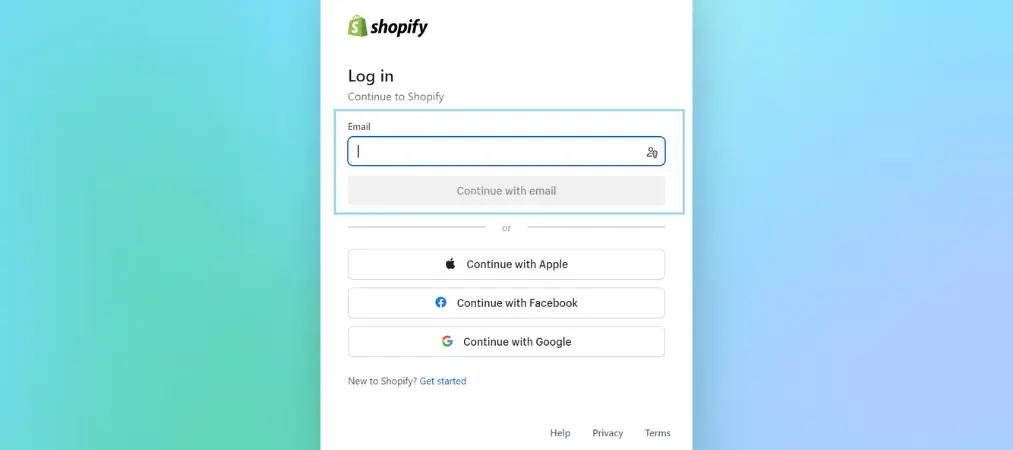
Table of Contents
Quick Access Links
Before diving in, here are the direct links you need:
- Sign in to your existing Shopify store: https://www.shopify.com/login — or go directly to https://yourstorename.myshopify.com/admin
- Create a new Shopify account: Start Free Trial
- Shopify Partners login: partners.shopify.com
- Shopify Affiliates login: app.impact.com
Setting Up Your Shopify Account
Embarking on your e-commerce journey begins with a crucial step: setting up your Shopify account – the foundation of your online business. Here’s how to get started:
Step 1: Set Up Your Shopify Account the Right Way
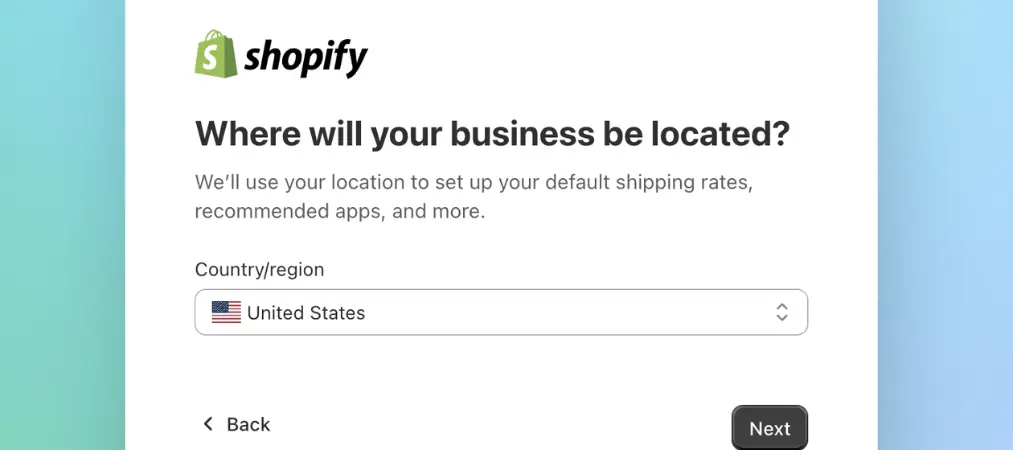
Before you can sign in to your Shopify account, you need one. Head to shopify.com and click Start Free Trial. You’ll provide:
- Your email address (this becomes your login ID)
- A store name (which forms your unique URL:
yourstorename.myshopify.com) - A strong password
Your store name matters more than you think — it becomes your permanent admin URL. Choose something clean and brand-aligned, because it cannot be changed later.
Password best practices:
- Mix uppercase, lowercase, numbers, and symbols
- Avoid personal info like birthdays or names
- Use a password manager (1Password, Bitwarden, etc.) to store it securely
- Enable two-factor authentication (2FA) immediately after setup — this single action prevents 99% of unauthorized access
New to Shopify? Before diving into settings, it’s worth familiarizing yourself with the platform’s core capabilities — check out our guide on must-know Shopify features for store owners to hit the ground running.
Step 2: The Standard Way to “Shopify Sign In”
The most straightforward method to sign in to your Shopify store is through the official login page.
Here’s how:
- Go to shopify.com/login
- Enter the email address linked to your Shopify account
- Enter your password
- Click Log in
Alternatively, bypass the main login page entirely by typing your store’s admin URL directly into your browser: https://yourstorename.myshopify.com/admin
This method is faster for store owners who log in daily, and it’s especially useful if you manage a custom domain and can’t remember which Shopify subdomain you used.
Step 3: Sign In to Shopify on Mobile

The Shopify mobile app (available on iOS and Android) lets you manage orders, respond to customers, and track sales from anywhere.
To sign in via the mobile app:
- Download the Shopify app from the App Store or Google Play
- Open the app and tap Log in
- Enter the same credentials you use for the desktop admin
- Select your store if you manage multiple
Once logged in, your mobile dashboard mirrors your desktop admin — same data, same tools, just optimized for on-the-go management.
Step 4: Manage Multiple Shopify Stores Without the Headache
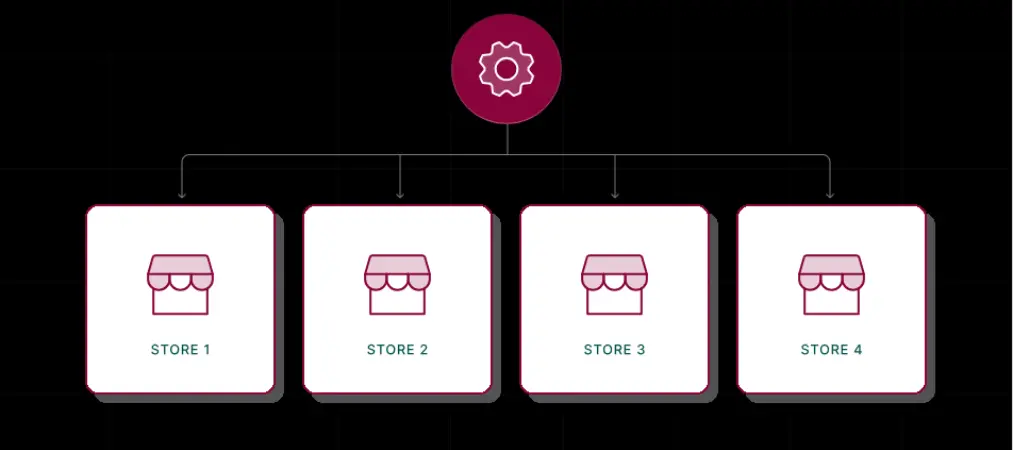
Running more than one Shopify store? Good news — one email can be linked to multiple stores, and switching between them is seamless.
On Desktop:
- Sign in to your Shopify store via any of the methods above
- Click the store name in the top-left corner of the dashboard
- A dropdown appears listing all stores tied to your account
- Select the store you want to manage — you’re instantly redirected
On Mobile:
- Log in through the Shopify app
- If multiple stores are linked, you’ll be prompted to select one at login
- To switch stores mid-session, tap the store name at the top of the screen and choose from the dropdown
Security tip for multi-store owners: Enable 2FA on every store separately. A breach on one store doesn’t automatically compromise others — but weak password reuse can.
Step 5: Partner & Affiliate Login — Know Your Portal
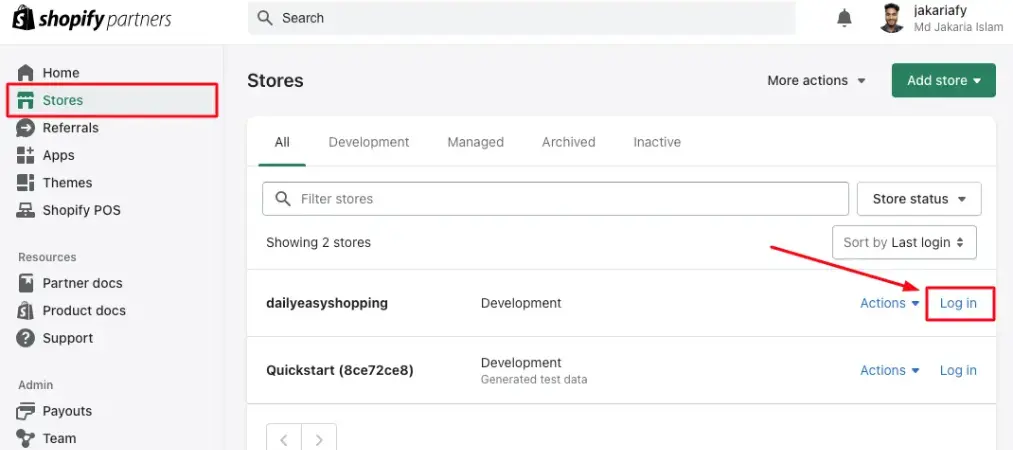
If you’re a developer, designer, or marketer working within the Shopify ecosystem, you don’t log in through the standard storefront — you have dedicated portals.
Shopify Partner Login
The Shopify Partner Program is built for agencies and freelancers who build stores for clients. Your dashboard is separate from any individual store.
To access it:
- Visit partners.shopify.com
- Click Log in (new users must sign up first)
- Enter your Partner account credentials
- Access your Partner Dashboard to manage client stores, referrals, and earnings
Shopify Affiliate Login
Affiliates earn commissions by referring new merchants to Shopify. The affiliate program runs on the Impact platform.
To log in:
- Go directly to app.impact.com/login.user
- Enter your affiliate account email and password
- Access your dashboard to view referrals, commissions, and promotional materials
Troubleshooting: What to Do When You Can’t Sign In to Your Shopify Account
Even experienced merchants hit login walls. Here’s how to break through the most common ones:
Forgot your password?
On the Shopify login page, click Forgot password. Shopify sends a reset link to your registered email within minutes. Check your spam folder if it doesn’t arrive.
Forgot your store name / URL?
Click Forgot store on the login page and enter your email. Shopify will email you a list of all stores associated with that address.
Two-factor authentication issues?
If you’ve lost access to your 2FA device, use your backup codes (you saved those, right?). If not, contact Shopify Support with your account verification details.
Account locked or suspended?
This usually happens after too many failed login attempts or a billing issue. Contact Shopify Support directly at help.shopify.com.
Browser issues?
Try clearing your cache and cookies, or switching to a different browser. Shopify’s admin panel works best on Chrome, Firefox, Safari, and Edge.
Frequently Asked Questions

What is the direct URL to sign in to my Shopify store?
The fastest way is to go to https://yourstorename.myshopify.com/admin — replace “yourstorename” with your actual store name. You can also use the standard login page at shopify.com/login.
Can I use the same email to sign in to multiple Shopify stores?
Yes. One email address can be linked to multiple Shopify stores. After logging in, you’ll see a store-switcher dropdown that lets you jump between accounts without logging out.
Why am I being asked for a verification code when I sign in to my Shopify account?
That’s two-factor authentication (2FA) working correctly. You’ll need the code from your authenticator app (like Google Authenticator or Authy) or the SMS sent to your registered phone number.
Is the Shopify Partner login the same as the regular store login?
No. The Shopify Partner Dashboard is a completely separate portal at partners.shopify.com. Partners use different credentials from regular store owners unless they set both up with the same email.
What should I do if I notice an unauthorized sign-in to my Shopify account?
Immediately change your password, revoke any suspicious app permissions under Settings > Apps, enable or re-enable 2FA, and contact Shopify Support to review recent activity.
How do I stay permanently signed in to my Shopify store?
On the login page, check the Remember me box before logging in. This keeps your session active on that device. Avoid using this on shared or public computers.
If you ever need to transfer ownership or shut things down, our step-by-step guide on how to delete your Shopify account and cancel your subscription walks you through the process safely.
Final Thoughts
Mastering your Shopify sign in process might seem like a small thing, but it’s the gateway to everything your business runs on. The 5 steps in this guide are designed to make access second nature — no matter what device you’re on or how many stores you manage.
Here’s what to lock in today: bookmark your direct admin URL (https://yourstorename.myshopify.com/admin), enable two-factor authentication, and store your credentials in a trusted password manager. With those in place, you can focus entirely on growing your store.
And when you’re ready to level up your order workflow, Vify Order Printer is a powerful Shopify app that generates clean, professional invoices and packing slips automatically — the perfect complement to a store that’s always accessible and running smoothly.