Table of Contents
Shopify has become one of the most popular eCommerce platforms for online businesses worldwide. With powerful features, flexible Shopify store settings, and an easy-to-use interface, Shopify helps merchants build and manage online stores efficiently. However, there may come a time when you decide to delete Shopify account access, close your store, or cancel Shopify subscription services for business or financial reasons.
Let’s dive in and explore the necessary steps to delete Shopify account and cancel your subscription, ensuring a seamless departure from the platform while maintaining control over your business and data.
Table of Contents
Understanding Shopify account deletion and subscription cancellation
Difference between deleting a Shopify account and canceling a subscription
Before you delete Shopify account access, it’s important to understand the difference between Shopify account deletion and choosing to cancel Shopify subscription plans.
When you delete Shopify account information permanently, your online store and all related data will be removed from Shopify’s servers. This includes products, customer information, analytics, and order history. Shopify account deletion is permanent, which means you cannot recover your data later.
In contrast, when you cancel Shopify subscription services, you stop future billing and deactivate store functionality, but your account information may still remain accessible for a limited period. Many merchants first cancel Shopify subscription plans before deciding whether full Shopify account deletion is necessary.
Understanding these Shopify store settings and account management options helps store owners make informed decisions based on their business goals.
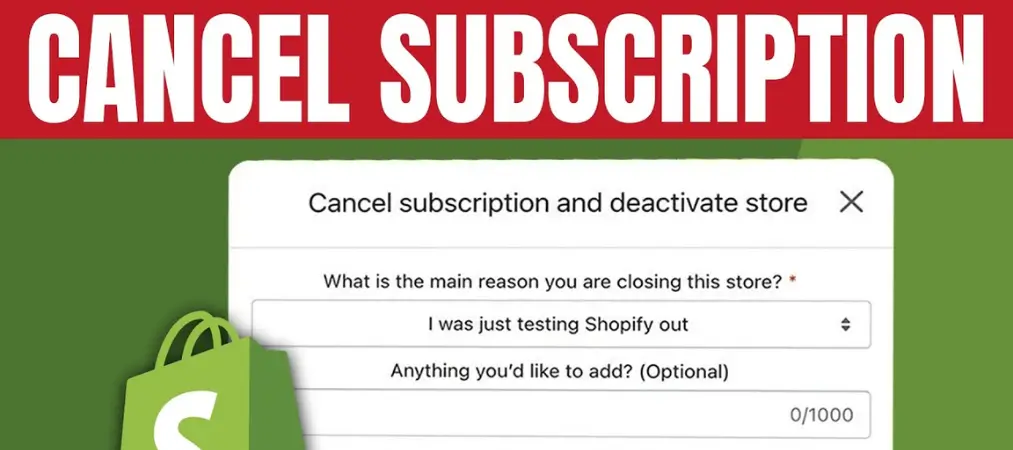
Why someone might want to delete their Shopify account
There are several reasons merchants may choose to delete Shopify account access completely:
- Closing a business permanently
- Switching to another eCommerce platform
- Rebranding under a different business structure
- Reducing software and operational expenses
- Managing multiple unused stores
For some businesses, Shopify account deletion is the most practical solution when the store is no longer active.
Reasons for canceling a Shopify subscription
Sometimes, merchants only need to cancel Shopify subscription plans instead of fully deleting the account. Common reasons include:
- Lowering monthly operational costs
- Temporarily pausing online sales
- Testing another Shopify pricing plan
- Taking a break from business operations
- Reorganizing Shopify store settings
By choosing to cancel Shopify subscription services instead of immediately proceeding with Shopify account deletion, store owners maintain more flexibility for future use.
Steps to delete a Shopify account
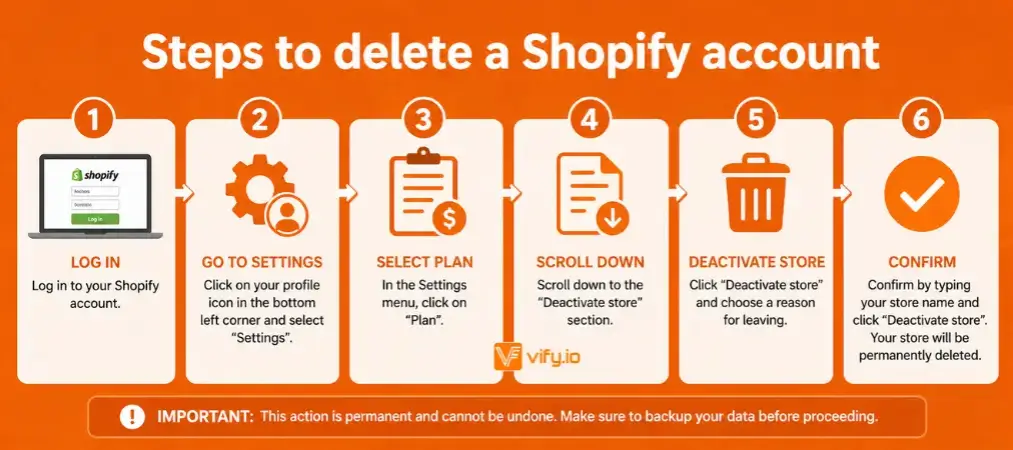
Step 1: Back up your data and store information
Before proceeding with deleting your Shopify account, it’s crucial to back up your data and store information. This ensures that you have a copy of essential data for future reference or potential migration to another platform. Consider exporting your product information, customer details, order history, and any other relevant data using the Shopify export tools or third-party apps.
Step 2: Cancel your Shopify subscription
To delete your Shopify account, you must first cancel your subscription. Access your Shopify admin dashboard and navigate to the “Billing” section. Review your current subscription plan and choose the cancellation option. Follow the prompts to confirm the cancellation. Note that you may need to provide a reason for canceling your subscription.
Step 3: Close your store
After canceling your subscription, proceed to close your store. Within the Shopify admin dashboard, go to the “Settings” tab and select “Plan and permissions.” Scroll down to the bottom of the page and click on the “Close store” link. Shopify will provide you with warnings and additional information about closing your store. Review the details and confirm the closure.
Step 4: Submit a closure request to Shopify
Once you’ve closed your store, it’s advisable to submit a closure request to Shopify. Visit the Shopify Help Center or contact Shopify support directly to inform them about your intention to delete your account. Provide any necessary details they may require, such as your store URL, email address, and reason for account deletion.
Step 5: Verify account closure and data removal
Shopify will process your closure request and delete your account permanently. It’s important to verify that your account has been closed and your data has been removed. Attempt to access your store’s URL and ensure that it is no longer active. Additionally, confirm that your personal and business data, including customer information, has been deleted from Shopify’s servers.
By following these steps, you can successfully delete your Shopify account, ensuring that your store is closed, your subscription is canceled, and your data is securely removed from the platform. Remember to double-check each step and perform the necessary backups to avoid any unintended loss of data.
Steps to Cancel a Shopify Subscription
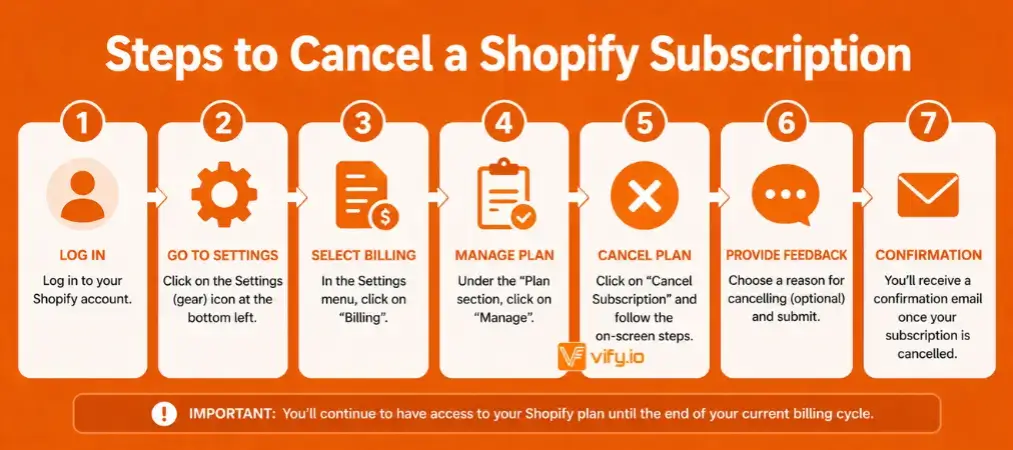
Step 1: Access your Shopify admin dashboard
To cancel your Shopify subscription, start by accessing your Shopify admin dashboard. Log in to your Shopify account using your credentials. Once logged in, you will be directed to the admin dashboard.
Step 2: Go to the “Billing” section
Within the admin dashboard, locate and click on the “Settings” tab, usually located on the lower left-hand side of the screen. From the drop-down menu, select “Billing.”
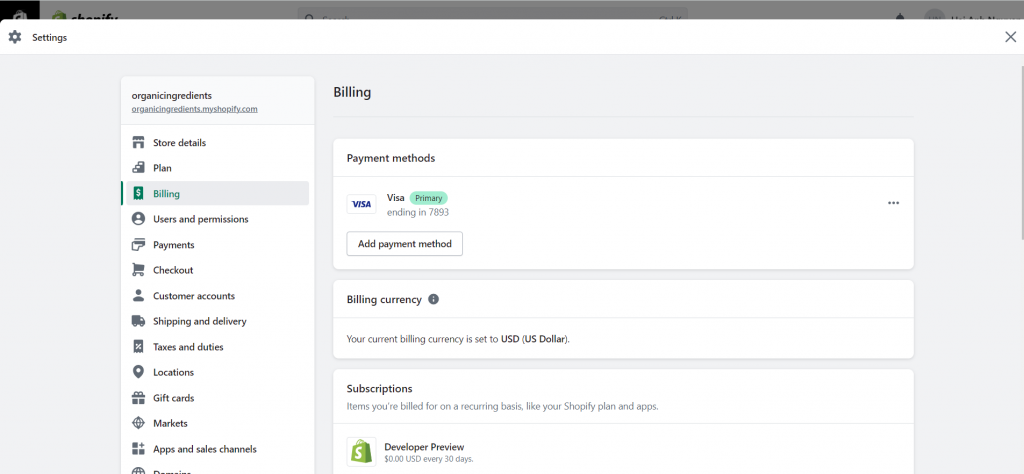
Step 3: Review your current subscription plan
In the “Billing” section, you will find an overview of your current subscription plan, including details such as the plan name, pricing, and billing cycle. Take a moment to review the information to ensure you are canceling the correct subscription.
Step 4: Choose the cancellation option
Look for the option to cancel your subscription within the “Billing” section. The exact location and wording may vary depending on the Shopify interface updates, but typically you will find a button or link labeled “Cancel subscription” or something similar. Click on this option to proceed with the cancellation process.
Step 5: Confirm the cancellation
After selecting the cancellation option, Shopify will prompt you to confirm your decision. Read through any additional information or details provided regarding the cancellation process. Shopify may ask you to provide a reason for canceling your subscription. Once you have reviewed the information and are ready to proceed, confirm the cancellation.
It’s important to note that canceling your Shopify subscription will stop any future charges associated with your account, but you will still have access to your store and its data. Ensure that you have completed all necessary steps if you intend to delete your Shopify account entirely.
Additional considerations
Transferring your domain name
If you have a custom domain name registered through Shopify, you may need to transfer it to another domain registrar or point it to a new hosting provider if you’re moving away from Shopify. Follow these steps to transfer your domain:
- Access your Shopify admin dashboard and go to the “Settings” tab.
- Select “Domains” from the drop-down menu.
- Choose the domain you wish to transfer.
- Follow the provided instructions to initiate the domain transfer process.
- Complete any required steps and provide the necessary information to complete the transfer.
Canceling any associated third-party apps
If you have installed any third-party apps from the Shopify App Store or integrated external services with your Shopify account, it’s important to cancel or remove them to avoid ongoing charges or unnecessary access to your data. Follow these steps to cancel third-party apps:
- Access your Shopify admin dashboard and go to the “Apps” section.
- Locate the app you want to cancel and click on its name to access its settings.
- Look for an option to cancel or uninstall the app.
- Follow the provided instructions to complete the cancellation or removal process for each app.
Managing customer data and communication
When canceling your Shopify account or subscription, consider how you will manage customer data and communication. It’s important to inform your customers about any changes, such as the closure of your store or a new platform you may be transitioning to. Here are a few steps to manage customer data and communication:
- Export customer data: Export your customer information from Shopify to ensure you have a backup or to import it into another platform if needed.
- Inform customers: Send out a communication, such as an email newsletter or social media announcement, to notify your customers about any changes to your business and how they can continue to stay connected or make purchases.
- Update contact information: If you have a new website or platform, ensure that your contact information is updated and visible to customers.
- Provide customer support: Even if you’re closing your Shopify store, ensure you have a plan in place to address any customer inquiries or support needs during the transition.
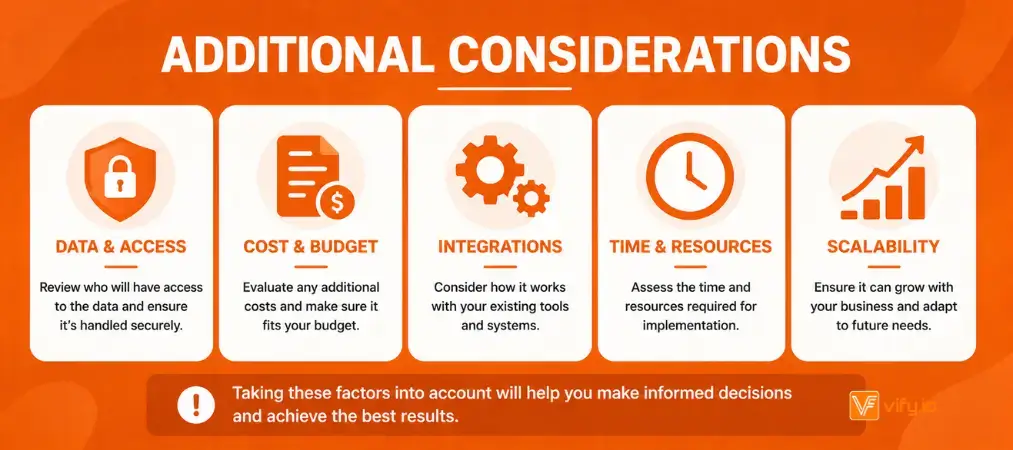
Taking these additional considerations into account will help you manage the various aspects involved in discontinuing your Shopify account or subscription. It ensures a smooth transition for your domain name, eliminates unnecessary app charges, and maintains effective communication with your customers throughout the process.
Frequently Asked Questions (FAQs)
Can I reactivate my deleted Shopify account?
Unfortunately, once you have deleted your Shopify account, it is not possible to reactivate it. Deleting an account permanently closes your store and removes all associated data, including products, customer information, and order history. Therefore, it’s important to carefully consider your decision before proceeding with the deletion.
Will I receive a refund if I cancel my Shopify subscription?
Shopify’s refund policy for subscription cancellations may vary depending on the specific circumstances and timing of your cancellation. In general, Shopify does not provide prorated refunds for unused subscription periods. It’s recommended to review Shopify’s refund policy or reach out to their support team for more detailed information regarding your specific situation.
How long does it take for Shopify to close my account?
The account closure process at Shopify typically takes place immediately upon confirming the closure request. However, it’s important to note that it may take some time for the closure to propagate through the system and for your store to become inaccessible. While the exact timeframe can vary, it usually occurs within a few minutes to a couple of hours. If you encounter any issues or delays, it’s advisable to reach out to Shopify support for assistance.
What happens to my data and store information after deletion?
When you delete your Shopify account, your data and store information are permanently removed from Shopify’s servers. This includes product details, customer information, order history, and any other data associated with your store. It’s crucial to back up and export any data you wish to retain before initiating the account deletion process. Once the account deletion is complete, it is not possible to recover the data, so exercise caution when proceeding with the deletion.
Remember, these FAQs provide general information, and it’s always advisable to consult Shopify’s official documentation or contact their support team for the most accurate and up-to-date answers to your specific queries.
Wrap up
Understanding how to delete Shopify account and cancel Shopify subscription properly is essential to avoid unexpected charges, lost data, or disruptions to your business operations. By carefully backing up your store data, reviewing active subscriptions, and following the correct closure steps, you can ensure a smooth and hassle-free transition.
Whether you’re pausing your eCommerce journey or moving to a different platform, taking the right approach will help protect your valuable business information and simplify the process.
If you’re selling on Shopify and need a professional invoice solution, especially one that’s easy to customize without any coding skills, then Vify’s Shopify Order Printer app is the best choice for you. Try it for free today and experience it for yourself. We’re confident you’ll love it.