Table of Contents
If you’re building a brand on Shopify, small details matter — and your favicon is one of them. A favicon is the tiny icon that shows up next to your store’s name in browser tabs, bookmarks, and search results. It might be small, but it plays a big role in how polished and trustworthy your store looks.
In this guide, you’ll learn exactly how to change the Shopify favicon, why it matters, and how to make sure yours looks sharp on every device.
Table of Contents
What Is a Favicon?
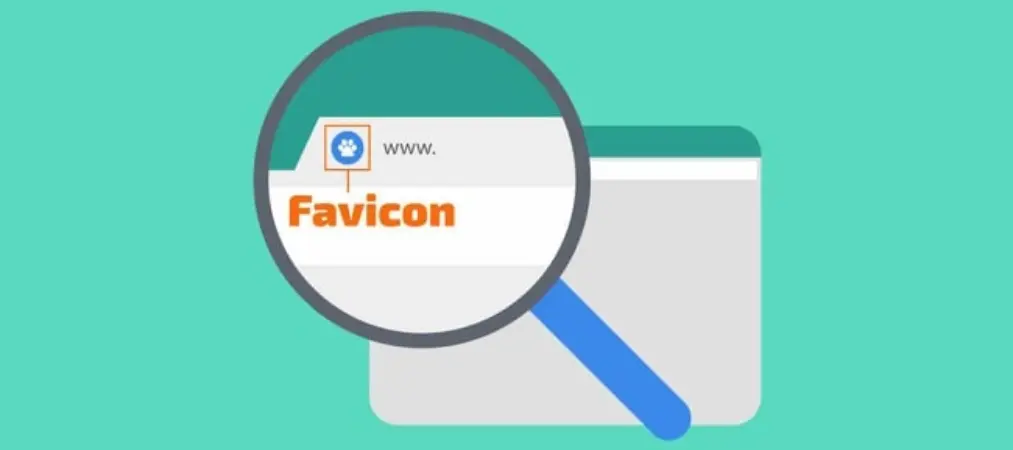
A favicon (short for “favourite icon”) is a tiny image — usually 32x32px or 48x48px — that appears in browser tabs and next to your site’s name when a visitor bookmarks your page. It’s often one of the very first visual impressions a shopper gets of your brand, even before they land on your homepage.
The good news: on Shopify, you don’t need any coding skills to change the Shopify favicon. It’s a quick update you can make directly from your theme editor.
Why You Should Update Your Shopify Favicon
Taking a few minutes to change the Shopify favicon can benefit your store in several ways:
- Branding: A custom favicon makes your store look polished, consistent, and professional across every page.
- User Experience: Shoppers who have multiple tabs open can find your store faster when your favicon is distinct and recognizable.
- Trust and Credibility: A branded favicon (instead of Shopify’s default icon) signals legitimacy and can help reduce bounce rates.
- SEO Benefits: While a favicon doesn’t directly influence rankings, it improves click-through rates and engagement — both signals search engines pay attention to. If you want a deeper look at what actually moves the needle, this guide to Shopify search engine optimization breaks down the strategies that matter most.
How to Change the Shopify Favicon
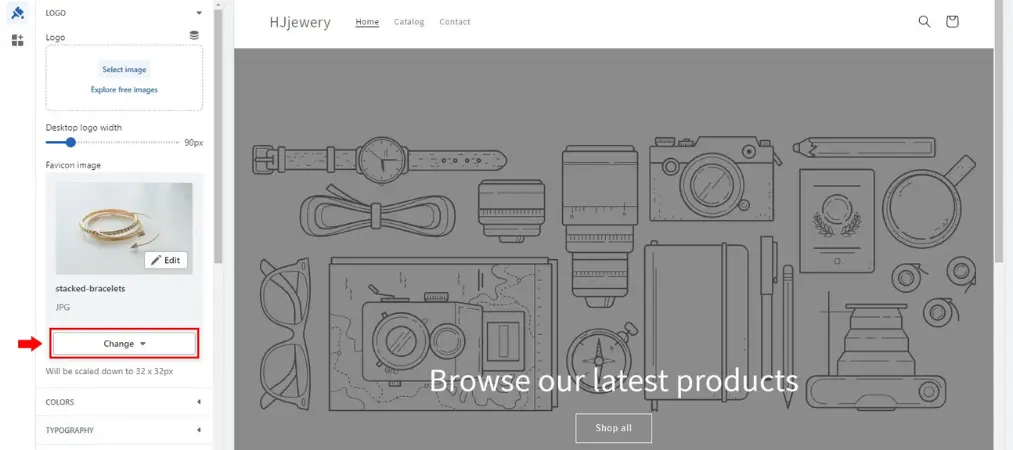
Follow these steps to upload and update your favicon directly in Shopify:
Step 1: Log In to Your Shopify Admin
Start by logging into your Shopify admin dashboard.
Step 2: Go to “Online Store” > “Themes”
From your Shopify admin, click Online Store in the left-hand menu, then select Themes.
Step 3: Click “Customize” on Your Live Theme
Find your current live theme and click the Customize button to open Shopify’s theme editor.
Step 4: Access the “Theme Settings” Panel
Inside the theme editor, look for the Theme Settings tab (it usually looks like a cog icon). Click it to expand your options.
Step 5: Look for “Favicon”
In the Theme Settings menu, scroll to find Favicon — it’s often near the bottom, or sometimes grouped under your Logo section. You’ll see an option to upload an image.
Step 6: Upload Your Favicon Image
Click Select image, then either choose a file from your library or upload a new one. Shopify recommends a square image, ideally 32×32 pixels or larger, saved in .png format.
Step 7: Save Your Changes
Once your image is uploaded, click Save in the top-right corner of the editor. That’s it — your new favicon is now live.
If you’re still setting up your store from scratch, it’s worth checking out this guide on how to set up a Shopify store to make sure details like your favicon fit into a solid overall launch checklist.
Favicon Image Tips for Shopify
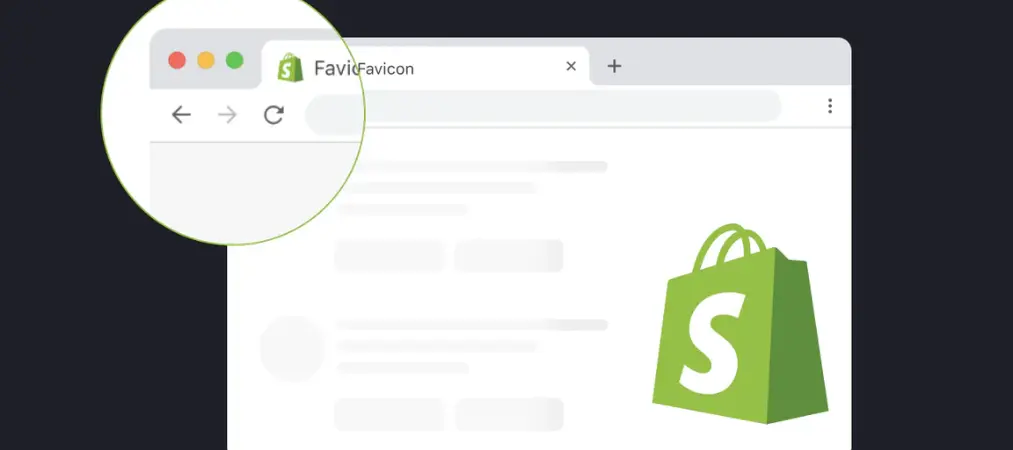
To make sure your favicon looks crisp on every screen, keep these tips in mind:
- Use a square image: 32×32 or 48×48 pixels works best.
- Keep it simple: Favicons are tiny, so avoid intricate details that get lost at small sizes.
- Use a transparent background: A .png with transparency displays more cleanly across different browsers.
- Match your branding: Your favicon should reflect your logo, color palette, and overall store identity.
How Long Does It Take for the Favicon to Update?
Once you save your new favicon, it typically updates right away in most browsers. However, browser caching can sometimes delay the change. If your old favicon is still showing, try refreshing the page or clearing your browser cache.
Common Issues When Updating the Shopify Favicon
If your new favicon isn’t appearing after you save it, check these common culprits:
- Image size or format: Confirm your file is square and saved as a .png.
- Caching: Clear your browser cache and reload the page.
- Theme limitations: Some heavily customized themes may require manual code edits. If that’s the case, your theme developer can usually resolve it — it’s a simple fix even when code is involved.
FAQ: Changing the Shopify Favicon
Q: What size should a Shopify favicon be?
A: Shopify recommends a square image of at least 32×32 pixels, though 48×48 pixels often renders more sharply on high-resolution screens.
Q: What file format does Shopify support for favicons?
A: A .png file is recommended, ideally with a transparent background so it displays well across different browsers and devices.
Q: Do I need coding skills to change the Shopify favicon?
A: No. You can change the Shopify favicon entirely through the theme editor’s Theme Settings panel — no code required.
Q: Why isn’t my new favicon showing up?
A: This is usually caused by browser caching. Clear your cache or try viewing your store in an incognito window. If it still doesn’t appear, double-check your image format and dimensions.
Q: Does a favicon affect my store’s SEO ranking?
A: Not directly, but it can improve click-through rate and user engagement — both of which search engines factor into how your store performs over time.
Q: Can I use different favicons for different pages?
A: No. Shopify applies one favicon store-wide through your theme settings; it isn’t set on a per-page basis.
Final Thoughts
Changing the Shopify favicon is a small task, but it makes a real difference in how polished and trustworthy your store feels to visitors. In just a few clicks, you can swap in a branded icon that improves recognition, strengthens user experience, and adds a layer of professionalism across every browser tab.
Once your favicon is sorted, it’s worth looking at the other small details that shape how customers perceive your store — including how you handle order confirmations and invoices. Vify Order Printer helps you generate clean, branded PDF invoices and receipts that match the same professional look you just gave your favicon.