Table of Contents
Whether you’re launching your first online business or juggling multiple stores at once, knowing how to handle your Shopify store login correctly makes a real difference in your day-to-day operations. A missed step during login — a forgotten password, an expired staff invite, or a skipped two-factor prompt — can interrupt your workflow at the worst possible time and cost you more than just a few minutes.
The reality is that Shopify store login system is more layered than most people realize: store owners, staff members, developers, and affiliates all follow different paths to access the same platform. Understanding which path applies to you, and what to do when something goes wrong, is the foundation of running a smooth Shopify operation. This guide covers every login scenario in one place so you always know exactly where to go and what to do.
Table of Contents
What You Need Before You Log In to Your Shopify Store

Before you can log in to a Shopify store, you need three things: the email address you registered with, your password, and your store’s myshopify subdomain.
When you first created your Shopify account, you chose a store name — for example, “GreenLeaf.” That became your permanent subdomain: greenleaf.myshopify.com. This URL stays the same even if you later add a custom domain to your storefront. Write it down or bookmark it, because you’ll need it every time you log in to your Shopify store.
How to Create a Shopify Account (If You Haven’t Yet)
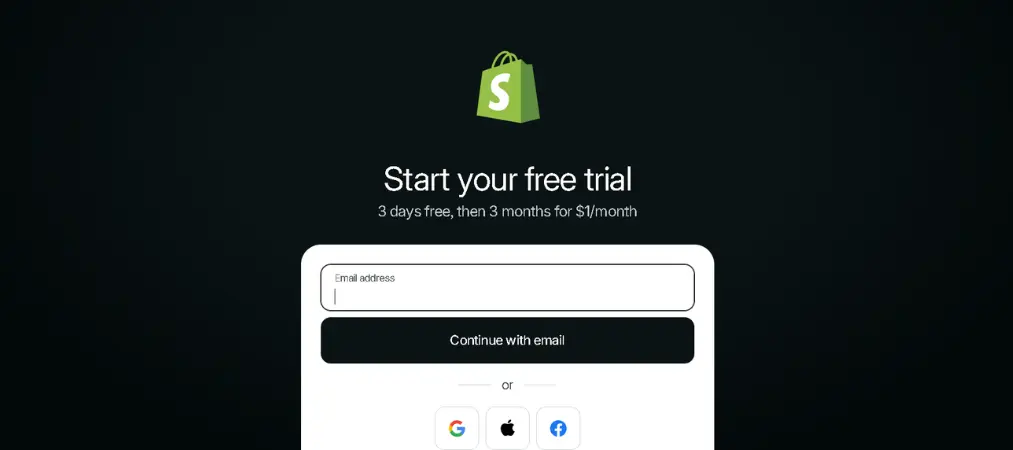
Step 1 — Go to shopify.com and click Start free trial.
You’ll enter your email, choose a store name, and set a password.
Step 2 — Choose a plan.
Shopify offers Basic, Shopify, Advanced, and Plus plans based on the size and needs of your business. You don’t need to commit immediately — the free trial gives you time to explore the admin first.
Step 3 — Enable two-factor authentication (2FA) right away.
Your Shopify admin holds your orders, customer data, and payment details. A unique, strong password plus 2FA dramatically reduces the risk of unauthorized access. Most people skip this step at setup and regret it later — don’t be one of them.
How to Log In to Your Shopify Store on Desktop
There are two ways to reach your store’s admin panel.
Method 1 — Direct admin URL (fastest)
Type your store URL directly into the browser: yourstore.myshopify.com/admin — replacing “yourstore” with your actual subdomain. Bookmark this page. It never changes and saves you several clicks every single day.
Method 2 — Via the Shopify homepage
Go to shopify.com/login. You’ll be asked to enter your store URL first, then directed to the login form.
Once you’re on the login screen, the steps are identical regardless of which method you used:
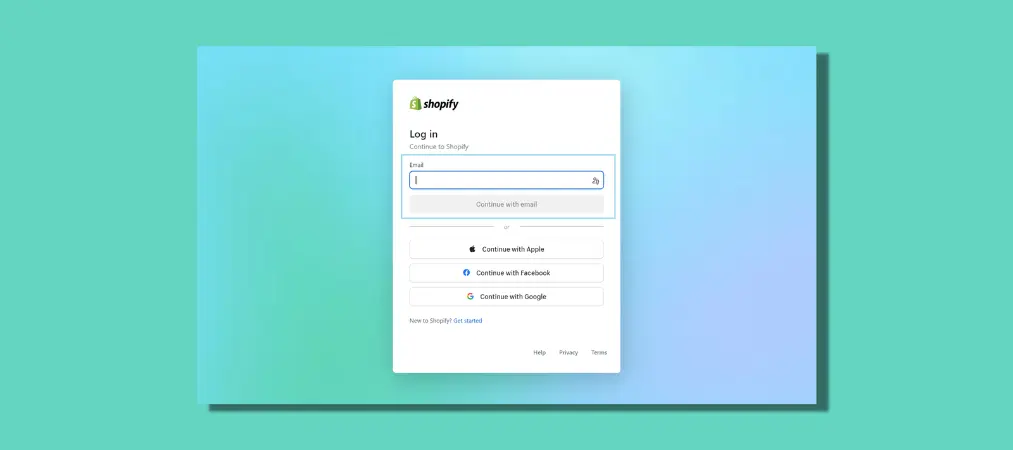
Step 1 — Enter your email address.
Type the email tied to your Shopify account and click Continue.
Step 2 — Enter your password.
Passwords are case-sensitive — double-check that Caps Lock is off. Click Log in.
Step 3 — Complete two-factor authentication (if enabled).
Enter the 6-digit code from your authenticator app or the SMS sent to your phone, then click Verify.
Step 4 — You’re in.
You’ll land on the Shopify Admin dashboard, where you can manage orders, products, customers, analytics, and all store settings.
Three Types of Shopify Store Login
Shopify is built with different access levels in mind. Understanding which login path applies to you avoids confusion and wasted time.
Store Owner Login
The store owner account has unrestricted access to every section of the admin, including billing, plan changes, and the ability to delete the store entirely. Use your registered email and password, then follow the four steps above.
Staff Member Login
Staff accounts work differently from owner accounts. The store owner goes to Settings → Users and permissions → Add staff account, enters the staff member’s email, and Shopify sends an invitation link. The staff member clicks that link, creates their own password, and can then log in at the same admin URL — but will only see the sections the owner has granted access to.
One thing to watch: staff invitation links expire after 7 days. If a team member missed theirs, ask the store owner to go to Settings → Users and permissions and resend the invite.
Shopify Partner Login
Developers and agencies working on client stores use a completely separate path. Go to partners.shopify.com, sign in with your Partner credentials, then navigate to Stores to access any client store where you’ve been granted collaborator access. This keeps client passwords private and lets store owners define exactly which parts of the store you can see.
How to Log In to Your Shopify Store on Mobile
The Shopify mobile app brings the full admin experience to iOS and Android. Here’s how to get in:
Step 1 — Download the Shopify app.
Search for Shopify in the App Store (iOS) or Google Play (Android). Install the official app — it has a green shopping bag icon.
Step 2 — Tap Log in and enter your credentials.
Use the same email and password you use to log in to your Shopify store on desktop.
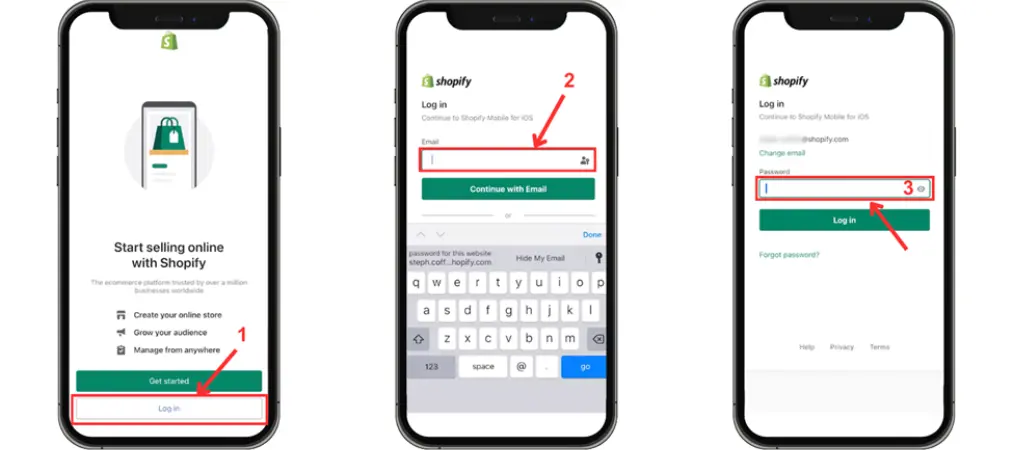
Step 3 — Complete 2FA if prompted.
Enter the 6-digit code from your authenticator app or check your SMS.
Step 4 — Select your store.
If you manage more than one store, a list will appear. Tap the store you want to open and you’ll land on its dashboard.
Step 5 — Enable biometric login for faster access.
After your first login, go to Account → Security → Biometric login and turn on Face ID or fingerprint unlock. From that point forward, you won’t need to type your password on that device — just a glance or a tap.
Switching Between Multiple Stores
If you own or manage more than one Shopify store, switching between them is quick on both platforms.
On desktop: once logged in, click the store name at the top left of the dashboard. A dropdown will appear listing all stores linked to your email. Select the one you want to manage.
On the mobile app: tap the store name at the top of the screen to open a dropdown, then select another store from the list.
Common Login Problems and How to Fix Them
Forgot your password On the login page, click Forgot password. Shopify will send a reset link to your registered email. Check your spam folder if it doesn’t arrive within a few minutes.
Forgot your store URL On the login page, click Forgot store. Enter the email address linked to your account and Shopify will send you a list of all stores associated with it.
2FA code not working Make sure your phone’s time is synced correctly. Authenticator apps generate time-based codes, so even a small clock discrepancy causes failures. Go to your phone’s date and time settings and enable automatic time sync.
Staff member can’t access certain sections Contact the store owner. Your permissions may need to be updated under Settings → Users and permissions.

Keeping Your Shopify Login Secure
A few habits go a long way toward protecting your store:
- Use a unique password you don’t use for any other account. A password manager makes this easy to maintain.
- Enable two-factor authentication on every account with admin access — not just the store owner’s.
- Review staff accounts periodically and remove access for anyone who no longer needs it.
- If you suspect your account has been compromised, change your password immediately and review recent activity in the Shopify admin.
Security isn’t a one-time setup. It’s an ongoing practice, especially as your team grows.
Once you’re in, make sure your store is running at its best. Check out our guide on must-know Shopify features for store owners to get the most out of your admin dashboard.
Everything You’ve Been Wondering About Shopify Login
Q1: Where do I go to access my Shopify store admin?
The fastest way is to go directly to yourstore.myshopify.com/admin, replacing “yourstore” with your actual store subdomain. Alternatively, you can go to shopify.com/login, enter your store URL, and proceed from there. Bookmarking your admin URL is the easiest long-term solution.
Q2: I forgot my Shopify store URL — how do I find it?
On the login page at shopify.com/login, click Forgot store. Enter the email address associated with your account and Shopify will send you a list of all stores linked to that email.
Q3: What should I do if I can’t remember my password?
On the login page, click Forgot password and enter your email address. Shopify will send a password reset link to your inbox. If you don’t see it within a few minutes, check your spam or junk folder.
Q4: My two-factor authentication code keeps getting rejected — what’s wrong?
The most common cause is a time sync issue on your phone. Authenticator apps generate time-based codes, so if your device clock is even slightly off, the code will be rejected. Go to your phone’s date and time settings and enable automatic time sync, then try again.
Q5: Is it possible for more than one person to log in to the same store?
Yes. The store owner can add staff accounts under Settings → Users and permissions → Add staff account. Each staff member gets their own login credentials and can only access the sections the owner has permitted. Note that the number of staff accounts you can add depends on your Shopify plan.
Final Thoughts
Shopify store login and how to do it efficiently — and securely — is one of the most fundamental skills for anyone running or working on a Shopify business. It might seem like a small thing, but the login process is the front door to everything: your orders, your customers, your revenue, and your store settings. Getting it right from the start means fewer disruptions, less time troubleshooting, and more time focused on actually growing your business.
Whether you’re a store owner handling daily operations, a staff member just getting started, or a developer jumping between client projects, using the right login path saves time and prevents unnecessary headaches down the road. Take a few minutes today to bookmark your admin URL, enable 2FA on every account with admin access, and make sure your team knows how staff invitations work. And if you ever decide to close your store or switch platforms, our guide on how to delete your Shopify account and cancel your subscription walks you through every step.