Table of Contents
A professional Shopify store is not only about product pages and themes. Small branding details can also make a big difference in how customers recognize and trust your business online. One of the most overlooked branding elements is the Shopify favicon.
A Shopify favicon is the small icon displayed in browser tabs, bookmarks, and search results. While it may seem minor, adding a custom favicon can significantly improve Shopify branding and create a more professional shopping experience for customers.
In this guide, you’ll learn how to change favicon on Shopify, configure Shopify favicon settings correctly, and optimize your store branding with a custom favicon.
Table of Contents
Have you ever heard of the word favicon?
If you are the kind who likes to open many browser tabs at once while working, I am sure that you also struggled to identify a tab in the browser sometimes, when there are too many tabs being opened and the titles are showing just too short to read. Favicons are your life-saver these times.

So, what is a favicon, and what’s it used for?
A favicon (short for “favorite icon”) is a small image displayed next to a website’s title in browser tabs, bookmarks, browser history lists, and sometimes search results.
Whenever visitors open your Shopify store, the Shopify favicon appears alongside your page title, helping users recognize your website instantly. Instead of reading the full store name, shoppers can identify your brand simply by looking at the icon.
Think about websites such as Amazon, Facebook, YouTube, or Shopify. Most users recognize them immediately because of their favicon, even before reading the website name.
Although small, this visual cue contributes significantly to a store’s overall branding strategy.
Why Is a Favicon Important for a Shopify Store?
In Shopify, if you haven’t set up your Shopify favicon, the platform would use your browser’s default favicon instead. However, most merchants would want to change it to their own brand image.
Stronger Brand Recognition
Your Shopify favicon serves as a miniature version of your brand identity.
When customers browse multiple tabs, they can quickly locate your store through its icon. This consistent visual branding makes your business more memorable.
For stores investing in long-term customer loyalty, every branding element matters—including the favicon.
More Professional Appearance
A Shopify store without a custom favicon may appear incomplete or generic.
Professional ecommerce stores pay attention to details, and customers often associate polished branding with trustworthiness.
Adding a Shopify favicon is one of the simplest ways to make your Shopify store look more established and credible.
Better User Experience
Online shoppers frequently compare products across several websites at the same time.
Imagine a customer opening:
- Your Shopify store
- A competitor’s website
- A product review page
- A shipping calculator
Without a Shopify favicon, your store becomes harder to identify among many tabs.
A recognizable icon helps users navigate more efficiently and return to your store faster.
Enhanced Visibility in Bookmarks
When visitors save your website to their bookmarks, the favicon appears next to the bookmark name.
This increases visibility and makes it easier for customers to revisit your store later.
Potential Search Appearance Benefits
Google may display a website’s favicon in certain search results and mobile browsing experiences.
While a Shopify favicon itself isn’t a ranking factor, it can improve visual recognition and contribute to a stronger brand presence online. Google notes that favicon display is not guaranteed, but properly configured favicons can be eligible for display in supported experiences.
How to add a favicon to your Shopify store
Step 1: Select the Themes section.
- From your Shopify admin, select Online Store > Themes.
- Choose the theme that you want to edit, and then click Customize.
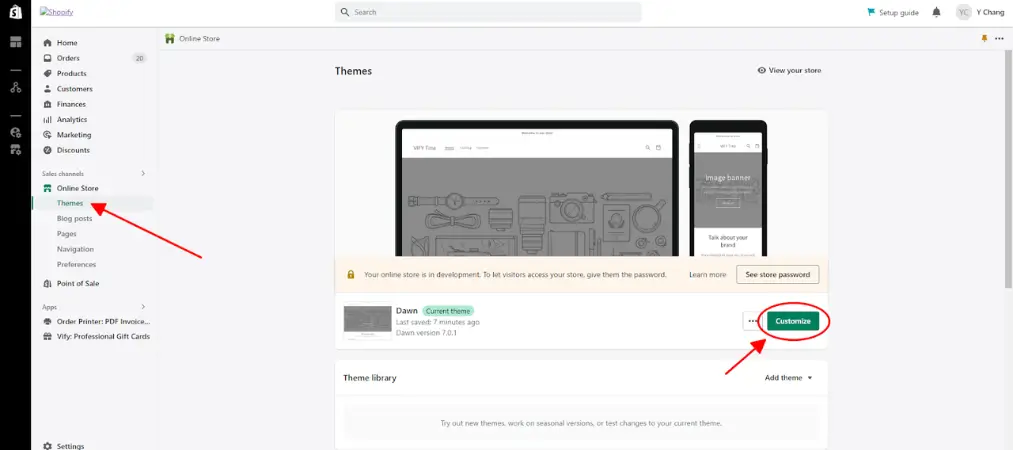
- Adding a favicon to your Shopify store
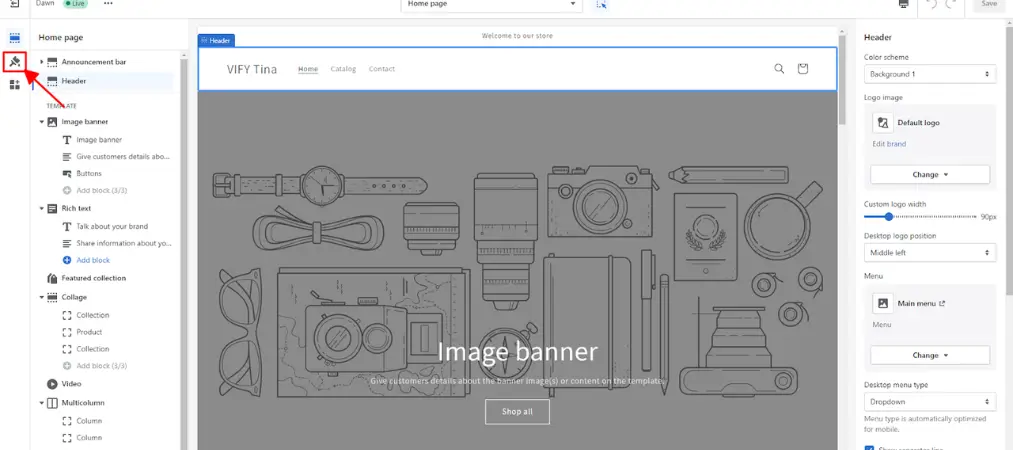
Step 2: Go to the Theme settings tab.
- Go to Theme settings by clicking on the brush symbol on the theme editor toolbar
- Adding a favicon to your Shopify store
Step 4: Choose a favicon.
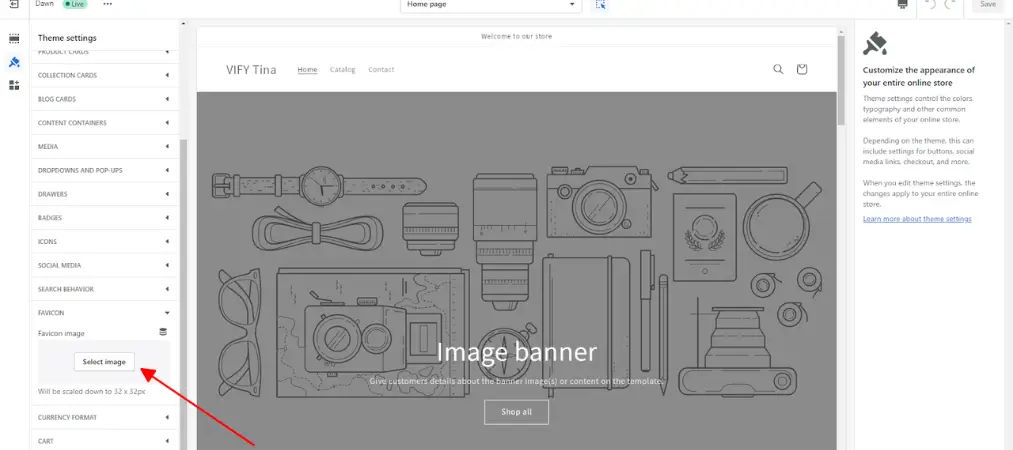
Scroll down to see the Favicon section, and click Favicon.
Adding a favicon to your Shopify store
There are two options for you here: you could upload your favicon or use your logo/cover image as a favicon.
1. Select/Upload a favicon:
In the Favicon image area, click Select image, and then do one of the following:
Adding a favicon to your Shopify store
- To select an image that you have already uploaded to your Shopify admin, click the Library tab.
- To select an image from your local computer, click the Library tab, and then click Upload
- Adding a favicon to your Shopify store
- Apart from that, you could also choose free images from Shopify as your favicon. Next to the Library tab, choose the one you like and click Select.
- Adding a favicon to your Shopify store
To add alt text to your favicon image: Click Edit.
Adding a favicon to your Shopify store
In the Edit image window, enter a brief description of the image and click Save.
Adding a favicon to your Shopify store
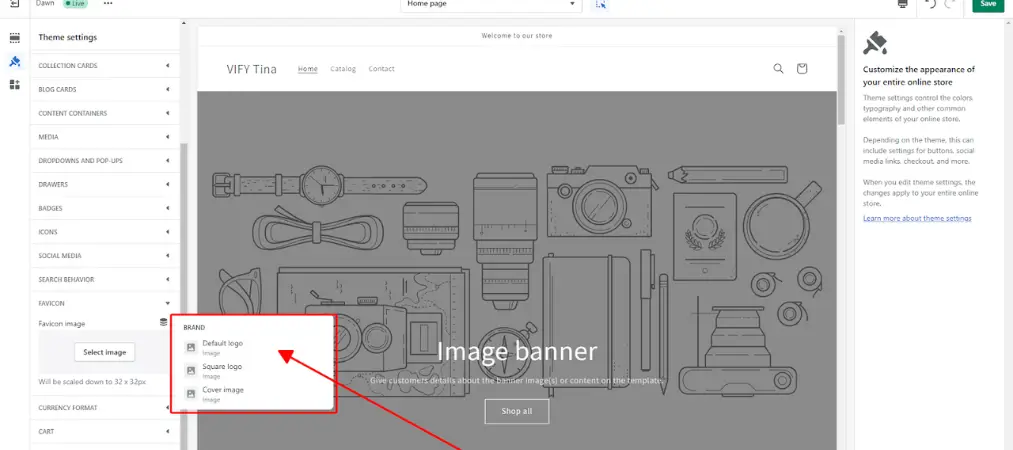
2. Use your brand logo/cover image as a favicon
Click on the symbol next to Favicon.
Adding a favicon to your Shopify store
Choose your website default logo/square logo/cover image to be your favicon
Adding a favicon to your Shopify store
Step 5: Save.
- Lastly, don’t forget to Click Save to finish your work.
- Adding a favicon to your Shopify store
Then you’re done adding the favicon to your Shopify store. The steps on mobile are also the same as on Desktop.
Common Favicon Mistakes to Avoid
Adding a Shopify favicon to your Shopify store is a simple task, but many merchants make small mistakes that can reduce its effectiveness. A well-designed favicon should be easy to recognize, visually appealing, and consistent with your brand identity. Avoid the following common issues to ensure your favicon delivers the best results.
Using a Complex Logo
One of the most common mistakes is uploading a detailed version of your logo as a favicon. Since favicons are displayed at a very small size, intricate graphics, fine details, and multiple design elements can become blurry or completely unrecognizable.
Instead, use a simplified version of your logo, a distinctive symbol, or a single letter that represents your brand. A clean and minimal design is often much more effective than a complex image when displayed in browser tabs.
Including Too Much Text
Text rarely works well in a Shopify favicon because of its limited size. Long business names, taglines, or multiple letters can become impossible to read once the image is scaled down.
If you want to incorporate text, consider using a single initial or a simple monogram rather than a full word. The goal is instant recognition rather than readability.
Choosing Low-Contrast Colors
Color selection plays a major role in favicon visibility. Icons that use very light colors, muted tones, or colors similar to browser backgrounds may be difficult for users to notice.
Choose colors that create strong contrast and reflect your brand identity. A Shopify favicon should remain visible whether users browse with a light theme or dark theme. High-contrast combinations generally provide the best results across different devices and browsers.

Uploading Non-Square Images
Favicons are designed to display as square icons. Uploading rectangular images may lead to cropping, distortion, or poor alignment when Shopify resizes the image automatically.
For the best appearance, create a square image with balanced spacing around the logo or symbol. This ensures consistent rendering across browsers, bookmarks, and mobile devices.
Forgetting to Test the Favicon
Many store owners upload a Shopify favicon and assume everything is working correctly without checking how it actually appears. However, browser caching, different screen sizes, and theme settings can affect the final result.
Before finalizing your favicon, test it in several environments, including:
- Desktop browsers such as Chrome, Edge, Firefox, and Safari
- Mobile browsers on iOS and Android devices
- Browser tabs with light themes
- Browser tabs with dark themes
- Bookmarks and saved shortcuts
Testing helps you identify visibility issues early and ensures your Shopify favicon remains clear and recognizable for all visitors.
Ignoring Brand Consistency
A favicon should be a natural extension of your overall brand identity. Using random icons, generic graphics, or colors that don’t match your branding can create confusion for customers.
Whenever possible, align your favicon with your logo, website design, and marketing materials. Consistent branding helps customers recognize your Shopify store instantly and contributes to a more professional online presence.
By avoiding these common mistakes, you can create a favicon that strengthens your brand image, improves user experience, and makes your Shopify store easier to recognize across browsers and devices.
Conclusion
A favicon may be one of the smallest branding elements on your Shopify store, but its impact can be surprisingly significant. It improves brand recognition, creates a more professional appearance, and helps visitors quickly identify your store among multiple browser tabs.
Fortunately, Shopify makes the process extremely simple. By uploading a clean, recognizable Shopify favicon and following basic design best practices, you can strengthen your store’s visual identity in just a few minutes.
As you continue optimizing your Shopify store, don’t overlook small branding details like favicons. These seemingly minor improvements contribute to a more polished customer experience and a stronger online presence overall.
Hopefully, this article has given you a hand in manipulating steps to add a favicon to your Shopify store. If you want to know more about how to set up a Shopify store, you can check our other articles on our website here: orderprinter.vify.io